This repo should be constantly evolving. Please open issues and pull requests to include anything you think is relevant.
Note: The intention is not to include every fancy script, tip and trick under the sun, this is about basic setup and getting going when you're new and already have a steep learning curve!
People who are new to coding.
Particularly people who have learnt online using inbuilt browser-based editors and tools (often the case in online courses) and have not set up their own environment on their own computers before.
When we were teaching ourselves how to code it took us some time, talking to more experienced developers and trying things out to pick up on all the small things that make our lives easier as developers.
We wanted there to be a single place where new developers could go to find these quickly so they can get past the setup and down to the business of coding.
_Note: @zubi we use a specific technology stack.
Installing software is optional,
but it does make you more effective so we highly recommend it.
This repo includes some recommendations of things we favour and use @zubi
- Text Editor
- Get yourself a text editor
- Do some basic setup to make your life a little easier
- Learn a handful of the most useful keyboard shortcuts
- Git & GitHub
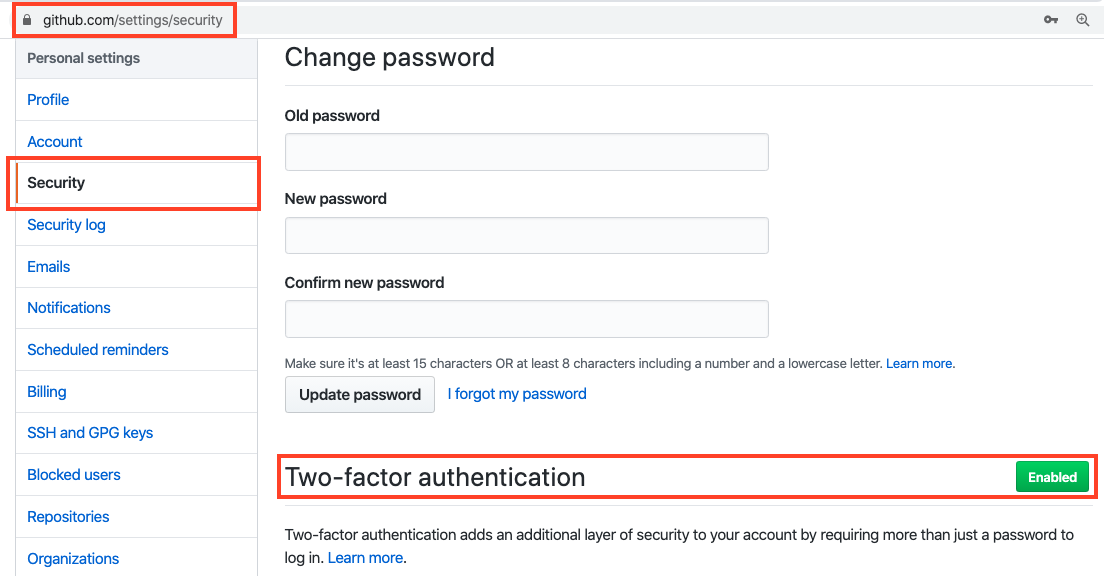
- Sign up for a Github account
- Enable 2 Factor Authentication
(2FA)
for Github to further protect not only your own account but also any organisations
that you're a part of from malicious intent
- Set it up on your computer
- Learn to use Git particularly on the command line
- Make sure you're comfortable with your terminal setup
Next steps? If you want to contribute to zubi projects, get comfortable with our stack and open issues whenever you have questions!
We use Git and Github exclusively for our version control and to share our work with the world.
Understanding the difference between the two is also helpful 😊
-
Sign up for a Github account
-
Set up Git on your computer
- We recommend you authenticate with SSH as this is more secure and means you won't have to type in your password every time you push to GitHub
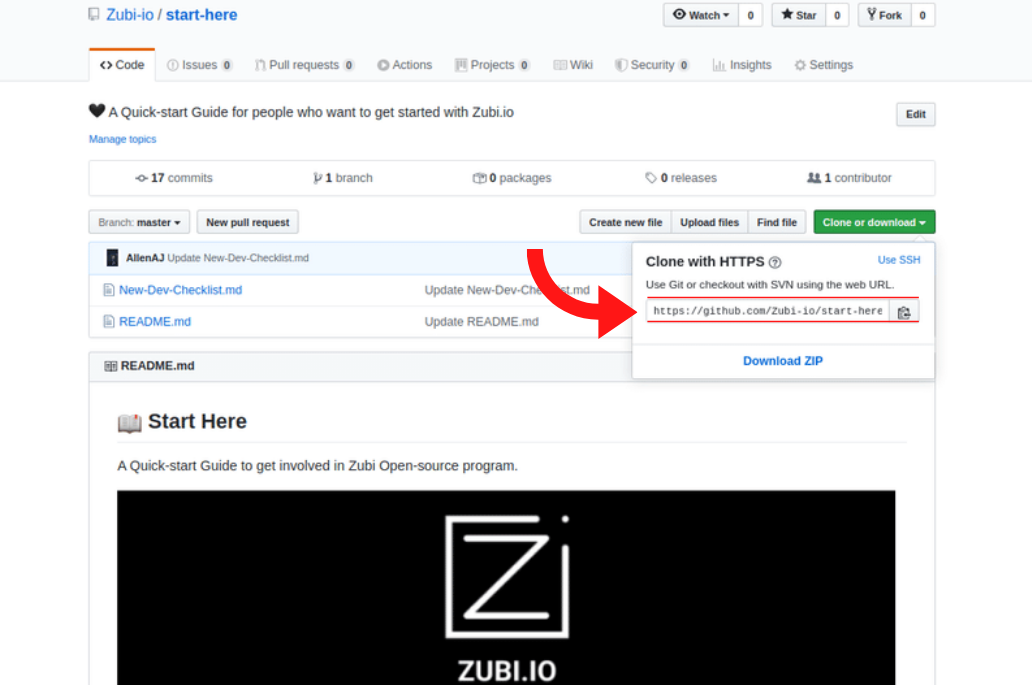
- Note: This also means that when you clone a repo, you'll need to use the SSH clone URL .
- There are many resources online, here are a few we like
- There are many themes which you may have heard of (like Oh My Zsh) that aim to add some functionality and shortcuts to your terminal - we don't recommend you use any terminal themes when you're starting out. Until you know what you're doing in the terminal, relying on these keeps you from becoming proficient in the basics.
- Similarly, a good number of us currently use iTerm as our terminal emulator but you really don't need to have one straight away - iTerm just provides some nice features like split panes 👍

It's entirely up to you which text editor you use, but you will inevitably need one.
A few common editors are
Atom editor (open source, NodeJS based editor).
Sublime Text (and have used this ourselves in the past).
- ** Set up soft tabs** (indentation)
- You can usually set this up in the Preferences or Settings of your favourite text editor so you never have to think about it again (example below on Atom editor)

- Set up a guide (or line) to show on your page at the 80 character mark so you know when you go past 80 characters (or columns) on a single line
- Useful for readability, particularly in code snippets where you would otherwise end up with a scroll bar
- You should also be able to set this up in your favourite text editor's Preferences (example below again on Atom editor - note, I also like to set up my editor to soft wrap at this line length so I can read other people's code more easily)

First of all you need to create a Github Account and then create a new repository, name it as you wish.
Now you have a link to your repository and instructions to how to create a new repository in the command line.
Now go to Atom and press cmd+SHIFT+P and you enter Github:clone and then paste your link.
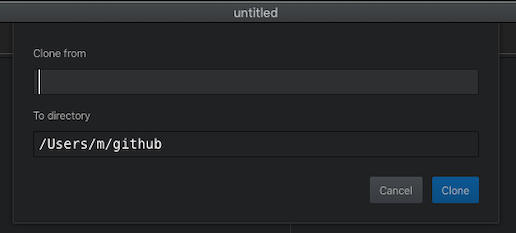
A couple a seconds later you have your repository on the left side of the screen.
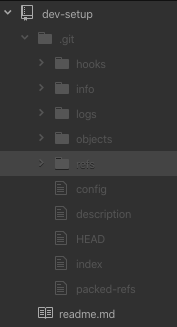
The next thing to do is authorize Github for atom so go to github.atom.io/login.
Just make the login with your information and copy the GitHub token after having your GitHub token copied go to Atom to the GitHub tab in the right lower corner and you will see a login just paste your token there and now you are connected to GitHub.
So now if you create a file and edit with your own text you can upload the file to GitHub by going to the git tab and Stage the changes in your file you have to give a commit message the first time you edit the file. Then click on Commit to master.
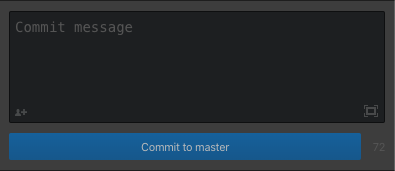
Now click on master and then on new branch and call it whatever you want then click on publish. You will have to enter your credentials again to validate those changes.
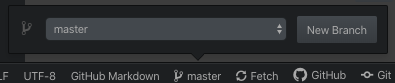
If you go on your created repository and press F5 you should see those changes.
- Install at least a basic linter to your editor
Each person's most used shortcuts will vary of course, but here are some of the things we suggest learn the keyboard shortcuts for:
- Select the current word (usually
cmd + D) - Delete current line (usually
ctrl + shift + K) - Indenting a line or a whole block of code at once
- Column editing
- Moving a line or block of code up and down the page
- Changing the syntax highlighting when required
- Toggle between the different views (e.g. hide/show the file tree view to gain more screen real estate)

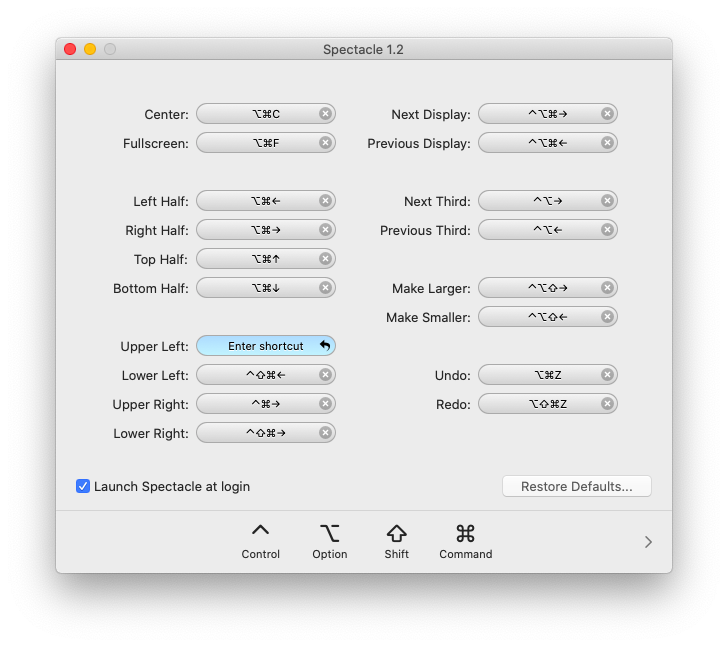
So a lot of you may have lots of open windows at once. You got code running and then you got the documentation for the code and you got Google stuff opened. And then "Stack overflow" to search for errors or doubts. Everything becomes a mess and a nightmare with so many pages open. The simplest way to organize everything is to use the spectacle.
Spectacle is simply an app that helps you managing your windows. Lets you modify whatever you want to do to your windows. Keyboard shortcuts are the fastest way to communicate with your computer. If you want to be super fast and efficient "You need to learn how to use Spectacle". Once you learn some of the shortcuts you will just need to use your "Muscle Memory" to use them.
Note: Spectacle is only for Mac in alternative for windows you have AquaSnap that works the same way.
First of all access the website :https://www.spectacleapp.com/

After Clicking on 'Download Spectacle' you just need to add to your applications folder.
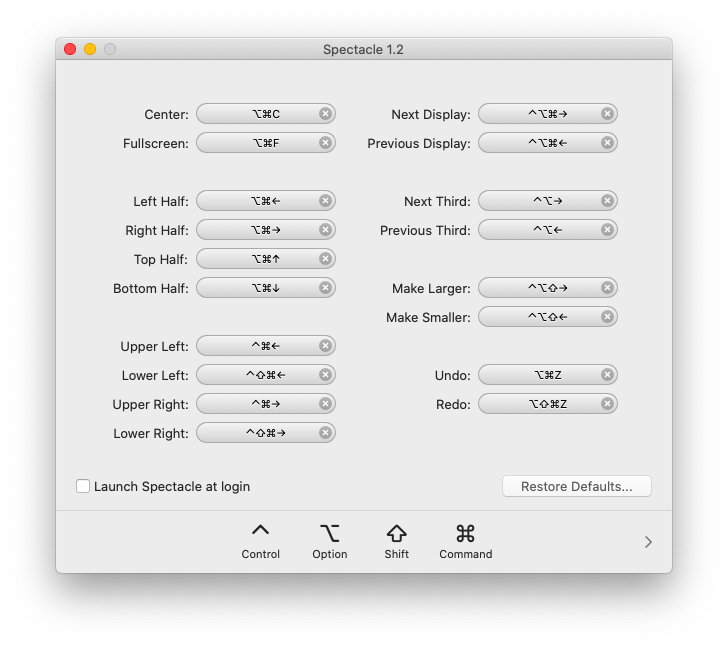
You can "Always" edit your own shortcuts going to preferences and click on the shortcut you want to change.