
Master thesis project at the University of Freiburg
Read thesis »
Report Bug
·
Request Feature
If you are looking for a free scalable tool to collect and index information from a specific set of domains on the Internet, Scriburg is the right tool for you.
Examples of valid use cases:
- Compare prices and find the cheapest product in the market
- Track job positions with a keyword
- Find an affordable apartment to rent
- Follow news
- Monitor social media content
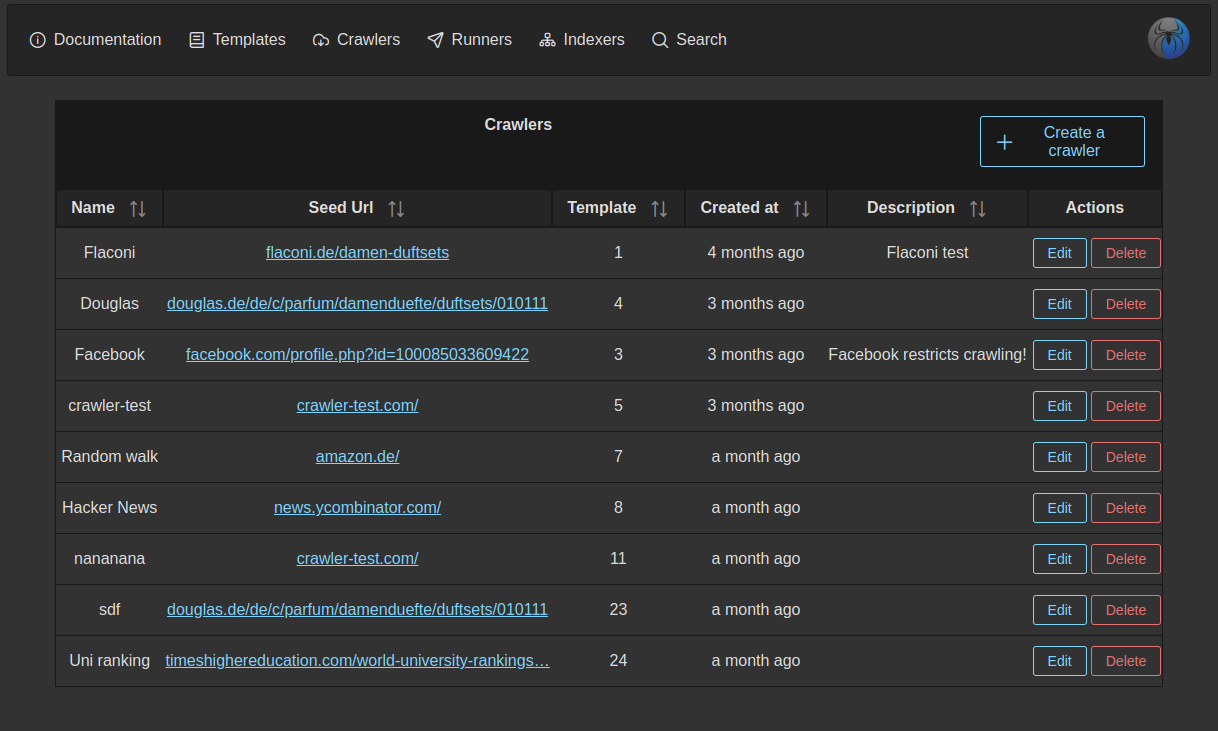
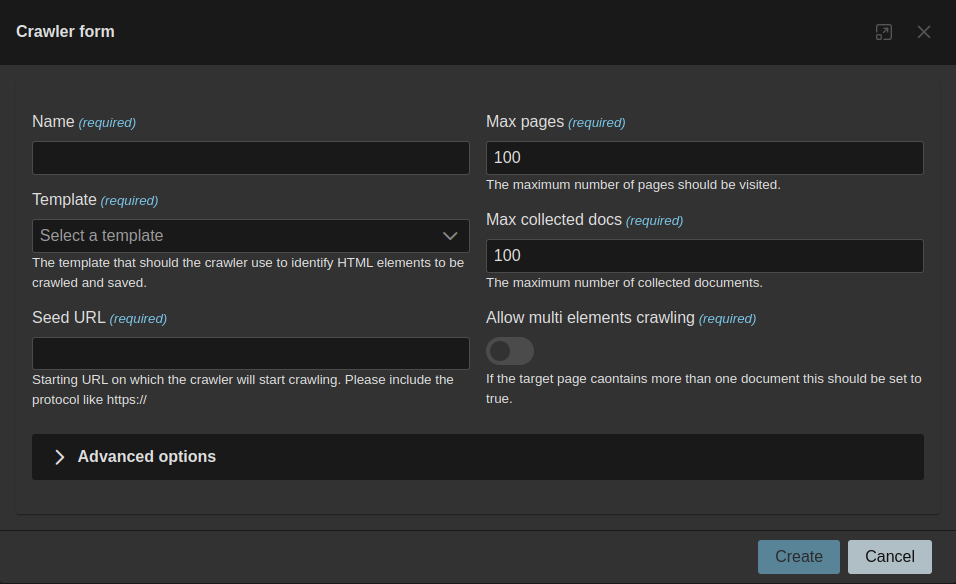
| Crawlers Dashboard | Crawler Configuration |
|---|---|
 |
 |
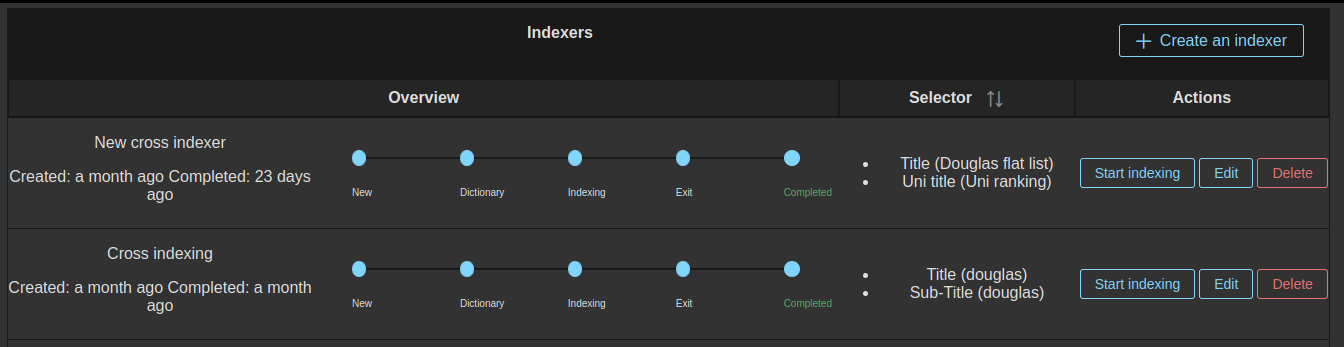
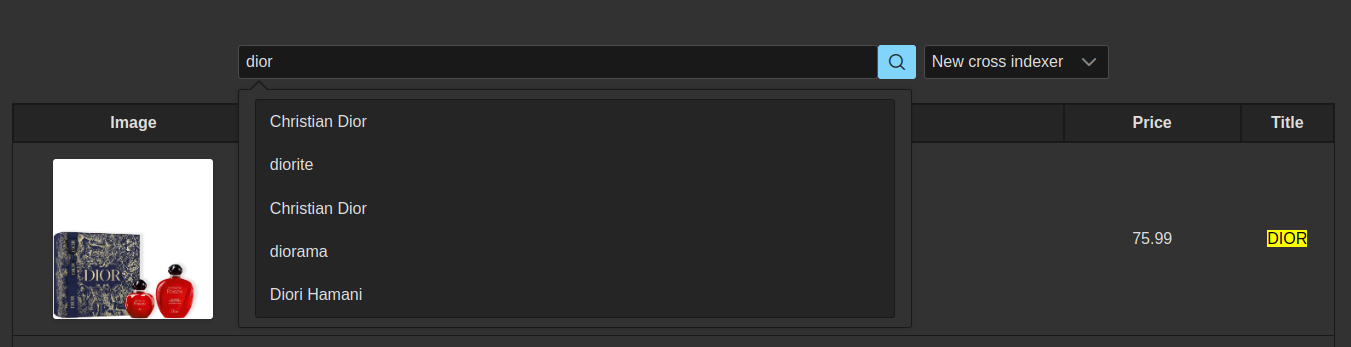
| Indexers Dashboard | Search Result |
|---|---|
 |
 |




To simplify the installation process, docker-compose is used and recommended.
Installing docker compose (Recommended)
The docker compose version supported is: v2.16.0
run docker compose version to print your local version.
If you do not have docker compose you can install it from here Docker compose
-
Building all images:
docker compose build -
Run containers:
docker compose up -d -
If you want to run only the pbs cluster run:
docker compose up -d pbs-head-node pbs-crawl-node -
To register the crawler node in the head node, first, you have to invoke the head container and run the following:
. /etc/profile.d/pbs.sh
qmgr -c "create node pbs-crawl-node"
You want to create a small search engine that can answer any question related to Python. To do so you want to collect all the questions on Stack Overflow related to Python topic.
Read more ...
This is a screenshot on how the table we want to extract information from looks like:
Goal: We would like to extract the following Fields: Title, Description and Votes
To do so, we will follow the next steps:

We start by creating a Template, which is the blueprint that maps to the fields that want to be downloaded as a document.
- Go to the Templates page
- Click on
Create a templatebutton - Give a name of the template
stack-overflow-templateand click onsave. - Expand the template you created by clicking on the
>button. - Now we want to create the fields we want to capture from the page:
title,descriptionandvotes. - Click on
Create an inspectorbutton and create the following inspectors:
Name: title
Selector: //*[contains(@class, 's-post-summary--content-title')]
Type: text

Name: description
Selector: //*[contains(@class, 's-post-summary--content-excerpt')]
Type: text

Name: votes
Selector: //*[contains(@class, 's-post-summary--stats-item__emphasized')]
Type: text
This is how your inspector's list should look like:

After creating a Template, we want to create and configure a Crawler.
- Navigate to the Crawlers page
- Click on
Create a crawlerand expandAdvanced options - Fill the next values:
Note: After filling the Links Scope (Pagination) press enter to apply changes to the field because it is a list of text.
Name: stack-overflow-crawler
Template: stack-overflow-template
Max pages: 1000
Max collected docs: 1000
Seed URL: https://stackoverflow.com/questions/tagged/python
Allow multi elements crawling: Enable
Links Scope (Pagination): //*[contains(@class, 's-pagination')]
Threads: 1
Max depth: 10000
This is how it should look like:

- Click on
Createbutton
Runners are jobs that run the crawling process in a cluster or locally. After creating the Crawler, we create a Runner. Now, we can run/stop the crawlers from the Runners page.
- Navigate to the Runners page:
- Click on
Create a Runner - Fill the following:
Name: stack-overflow-runner
Crawler: stack-overflow-crawler
Machine: localhost
- Click on Create
Find your runner in the list. Click on the burger menu to start crawling and click on Start.

The list will keep refreshing. You don't have to keep reloading the page.
You can monitor the progress by looking at the progress column and status column.
You can see the log and statistics by clicking on:

After the runner is completed, we can start indexing the results.
- Navigate to Indexers
- Click on
create an indexer - Fill the following:
name: stack-overflow-indexer
Inspectors:  stack-overflow (Title), stack-overflow (Description)
- Click on Create.
- Find your indexer from the list and click on
Start indexing. - Watch the indexing going from status
NewtoCompleted
After crawling (Collecting data) and Indexing (Preparing them for searching), we can test if searching returns the right results.
- Navigate to Search
- Select your indexer
- Search for:
python(Covering a normal query case)pythen(Fuzzy search test)what is ruby(Covering a case where only one word should be more important than others)django(Covering a normal query case)SQL database(Covering a normal query case)Python 2.6(Covering a normal query case with a number)
You are a university professor and would like to maintain a local version list of the universities worldwide and their ranking. To do this, we will use the website (www.timeshighereducation.com) to download and index the information. The Times Higher Education World University Rankings 2023 include 1,799 universities across 104 countries and regions, making them the largest and most diverse university rankings to date.
Read more ...
This is a screenshot on how the table we want to extract information from looks like:

Goal: We would like to extract the following Fields: University ranking, University name and University location
To do so, we will follow the next steps:
We start by creating a Template, which is the blueprint that maps to the fields that want to be downloaded as a document.
- Go to the Templates page
- Click on
Create a templatebutton - Give a name of the template
uni-ranking-templateand click onsave. - Expand the template you created by clicking on the
>button. - Now we want to create the fields we want to capture from the page:
uni-name,uni-locationanduni-ranking. - Click on
Create an inspectorbutton and create the following inspectors:
Name: uni-name
Selector: //*[contains(@class, 'ranking-institution-title')]
Type: text

Name: uni-location
Selector: //*[contains(concat(' ', normalize-space(@class), ' '), ' location ')]
Type: text

Name: uni-ranking
Selector: //*[contains(@class, 'rank') and contains(@class, 'sorting_1') and contains(@class, 'sorting_2')]
Type: text
This is how your inspector's list should look like:

After creating a Template, we want to create and configure a Crawler.
- Navigate to the Crawlers page
- Click on
Create a crawlerand expandAdvanced options - Fill the next values:
Note: After filling the Links Scope (Pagination) press enter to apply changes to the field because it is a list of text.
Name: uni-crawler
Template: uni-ranking-template
Max pages: 10000
Max collected docs: 300000
Seed URL: https://www.timeshighereducation.com/world-university-rankings/2023/world-ranking
Allow multi elements crawling: Enable
Links Scope (Pagination): //*[contains(@class, 'pagination')]
Threads: 4
Max depth: 10000
This is how it should look like:
- Click on
Createbutton
Runners are jobs that run the crawling process in a cluster or locally. After creating the Crawler, we create a Runner. Now, we can run/stop the crawlers from the Runners page.
- Navigate to the Runners page:
- Click on
Create a Runner - Fill the following:
Name: uni-runner
Crawler: uni-crawler
Machine: localhost
- Click on Create
Find your runner in the list. Click on the burger menu to start crawling and click on Start.
The list will keep refreshing. You don't have to keep reloading the page.
You can monitor the progress by looking at the progress column and status column.
You can see the log and statistics by clicking on:
After the runner is completed, we can start indexing the results.
- Navigate to Indexers
- Click on
create an indexer - Fill the following:
name: {yourname}-uni-indexer
Inspectors:  {yourname}-uni-crawler (Uni name {yourname})
- Click on Create.
- Find your indexer from the list and click on
Start indexing. - Watch the indexing going from status
NewtoCompleted
After crawling (Collecting data) and Indexing (Preparing them for searching), we can test if searching returns the right results.
- Navigate to Search
- Select your indexer
- Search for:
university(Covering a normal query case)what is freiburg(Covering a case where only one word should be more important than others)show me hamburg unis(Long query)berlin(Covering a normal query case)Humboldt Berlin(Covering a normal query case)Electronic(Covering a normal query case)college(Covering a normal query case)
- Testing the suggestions list:
- Enter
Universi, Should correctly suggestuniversity - Enter
univsrity, Misspelling should be forgiven, and the result should beuniversity - Enter
university oxford, should show results includinguniversity of oxford
- Enter
You are a small business owner who would like to monitor and track the competitors. You can create more than one crawler to monitor different websites and for this use case, we will focus on Douglas.
Read more ...
This is a screenshot on how the products we want to extract information from looks like:

Goal: We would like to extract the following Fields: Brand, Image, name and Price
To do so, we will follow the next steps:
We start by creating a Template, which is the blueprint that maps to the fields that want to be downloaded as a document.
- Go to the Templates page
- Click on
Create a templatebutton - Give a name of the template
{your-name}-douglasand click on save. - Expand the template you created.
- Now we want to create the fields we want to capture from the page:
Product brand,Product image,Product nameandProduct price. - Click on
Create an inspectorbutton and create the following inspectors:
Name: product-name-{yourname}
Selector: //*[contains(@class, 'text')][contains(@class, 'name')]
Type: text

Name: product-brand-{yourname}
Selector: //*[contains(@class, 'top-brand')]
Type: text

Name: product-image-{yourname}
Selector: //a[contains(@class, 'product-tile__main-link')]/div[1]/div/img
Type: image

Name: product-price-{yourname}
Selector: //div[contains(concat(' ', normalize-space(@class), ' '), ' price-row ')]
Type: text
This is how your inspector's list should look like with different names:

After creating a Template, we want to create and configure a Crawler.
- Navigate to the Crawlers page
- Click on
Create a crawlerand expandAdvanced options - Fill the next values:
Name: {yourname}-douglas
Template: {your-name}-douglas
Max pages: 20000
Max collected docs: 200000
Seed URL: https://www.douglas.de/de/c/parfum/damenduefte/duftsets/010111
Allow multi elements crawling: Enable
Links Scope (Pagination): This is a list field, meaning after each entry press enter button
- //*[contains(@class, 'pagination')]
- //*[contains(@class, 'left-content-slot')]
- //*[contains(@class, 'navigation-main__container')]
- //*[contains(@class, 'header')]
Threads: 4
Max depth: 100
This is how it should look like:

- Click on
Createbutton
Runners are jobs that run the crawling process in a cluster or locally. After creating the Crawler, we create a Runner. Now, we can run/stop the crawlers from the Runners page.
- Navigate to the Runners page:
- Click on
Create a Runner - Fill the following:
Name: {yourname}-douglas
Crawler: {yourname}-douglas
Machine: localhost
- Click on Create
Find your runner in the list. Click on the burger menu to start crawling and click on Start.
The list will keep refreshing. You don't have to keep reloading the page.
You can monitor the progress by looking at the progress column and status column.
You can see the log and statistics by clicking on:
After the runner is completed, we can start indexing the results.
- Navigate to Indexers
- Click on
create an indexer - Fill the following:
name: {yourname}-douglas
Inspectors:  product-name-{yourname} ({your-name}-douglas)
- Click on Create.
- Find your indexer from the list and click on
Start indexing. - Watch the indexing going from status
NewtoCompleted
After crawling (Collecting data) and Indexing (Preparing them for searching), we can test if searching returns the right results.
- Navigate to Search
- Select your indexer
- Search for:
set(Covering short query)water(Covering short query)Micellar Water(Covering exact product name)black(Covering normal query)black in(Covering a case were the tokens are in the wrong order)set spring dadadadadad(Covering a random word)
- Testing the suggestions list:
- Enter
Universi, Should correctly suggestuniversity - Enter
univsrity, Misspelling should be forgiven, and the result should beuniversity - Enter
university oxford, should show results includinguniversity of oxford
- Enter
Alhajras Algdairy - Linkedin - [email protected]