













PowerBGInfo creates Windows desktop and logon-screen backgrounds from PowerShell. Use it to put machine identity, support details, user/session context, operational status, charts, and small topology diagrams directly on the wallpaper.
You can read about this project on this blog post that tells a little backstory and shows few things.
- Generate a wallpaper from a normal PowerShell script.
- Use built-in values such as host name, user name, OS details, CPU, RAM, BIOS, and disk information.
- Add custom values from your own PowerShell, CIM/WMI, registry, AD, APIs, or RMM data.
- Place information in corners, center positions, or explicit screen coordinates.
- Wrap long values such as AD computer descriptions with
-ValueWrapWidth. - Apply output to the current user, all users, the logon/lock screen, or just write a file.
- Preserve the current Windows wallpaper slideshow by rendering one BGInfo image per slideshow source.
- Handle solid-color desktops when Windows has no wallpaper file.
- Add transparent ChartForgeX charts and topology diagrams on top of real wallpapers.
- Export JSON configurations when you need a portable deployment artifact.
Install from PowerShell Gallery:
Install-Module PowerBGInfo -Force -VerbosePowerBGInfo no longer requires separate PowerShell module installs for helper modules such as DesktopManager or ImagePlayground.
When there's an update, use the same Install-Module command again.
Create a simple generated wallpaper:
New-BGInfo -MonitorIndex 0 {
    New-BGInfoValue -BuiltinValue HostName -Color Red -FontSize 24
    New-BGInfoValue -BuiltinValue FullUserName -Name 'User'
    New-BGInfoValue -BuiltinValue OSName -Name 'OS'
    New-BGInfoValue -BuiltinValue CpuName -Name 'CPU'
    New-BGInfoValue -BuiltinValue RAMSize -Name 'Memory'
} -ConfigurationDirectory 'C:\ProgramData\PowerBGInfo' -WallpaperFit Fill
Generate an image file without changing the current wallpaper:
New-BGInfo -MonitorIndex 0 -Target File {
    New-BGInfoValue -Name 'Machine' -Value $env:COMPUTERNAME
    New-BGInfoValue -Name 'Support' -Value 'helpdesk@contoso.com'
} -ConfigurationDirectory 'C:\Temp\PowerBGInfo' -OutputFileName 'Preview.png' -BackgroundColor Black
Wrap long values:
$description = 'Long computer description from AD, inventory, RMM, CMDB, or any other source.'

New-BGInfo -MonitorIndex 0 -ValueWrapWidth 420 {
    New-BGInfoValue -Name 'Description' -Value $description -Color White -ValueColor LightGray
} -ConfigurationDirectory 'C:\ProgramData\PowerBGInfo'
Apply the same generated wallpaper for existing users and the default profile used by new users:
New-BGInfo -MonitorIndex 0 -AllUsers {
    New-BGInfoValue -BuiltinValue HostName
    New-BGInfoValue -BuiltinValue OSName -Name 'OS'
} -ConfigurationDirectory 'C:\ProgramData\PowerBGInfo' -WallpaperFit Fill
Apply to both the desktop wallpaper and the Windows logon/lock screen:
New-BGInfo -MonitorIndex 0 -Target Both {
    New-BGInfoValue -BuiltinValue HostName
    New-BGInfoValue -BuiltinValue OSName -Name 'OS'
} -ConfigurationDirectory 'C:\ProgramData\PowerBGInfo' -WallpaperFit Fill-AllUsers, -Target LogonScreen, and -Target Both need elevation because they write system-level wallpaper settings.



| Scenario | PowerBGInfo feature |
|---|---|
| Lab or demo VM identity | Built-in values, custom values, positioned text |
| Shared admin workstation | Support details, tenant/customer context, warning text |
| Build or test host | Charts for CPU, memory, disk, service status, and targets |
| Training room or kiosk | Exercise phase, machine number, URLs, reset hints |
| Terminal server / RDS | Per-session script runs for user-specific values |
| Fleet deployment | -AllUsers, JSON export, scheduled task/RMM execution |
| Logon screen branding | -Target LogonScreen or -Target Both |
- Solid-color desktops: when no wallpaper file exists, PowerBGInfo renders a blank image using the desktop background color or
-BackgroundColor. - Wallpaper slideshows: when no explicit
-FilePathis provided and Windows has a wallpaper slideshow configured, PowerBGInfo renders every slideshow source image into the configuration directory and restarts the slideshow with the generated images while preserving DesktopManager slideshow options and interval. Use-DisableWallpaperSlideshowwhen you want one static generated wallpaper instead. - Refresh behavior: by default the wallpaper is refreshed to avoid Windows caching issues; use
-DisableWallpaperRefreshonly when you need the old behavior. - All users: use
-AllUserselevated. Use-ExcludeDefaultUserProfileto skip the default profile. - Logon screen: use
-Target LogonScreenor-Target Bothelevated. - Terminal server / RDS: run PowerBGInfo in each user session when you need per-user values such as
FullUserName. - File output: use
-Target Fileand-OutputFileNamewhen you want a preview or an image for another deployment system.
PowerBGInfo works in Windows PowerShell 5.1 and PowerShell 7+. There is a known problem when running the module in the VS Code PowerShell extension on Windows PowerShell 5.1. The same module works in the regular Windows PowerShell 5.1 console, Windows PowerShell ISE, and PowerShell 7+.
You can also render everything inline from PowerShell when you're exploring or authoring a layout:
New-BGInfo -MonitorIndex 0 {
    # Add computer name from a built-in value.
    New-BGInfoValue -BuiltinValue HostName -Color Red -FontSize 20 -FontFamilyName 'Calibri'
    # Add current user from a built-in value.
    New-BGInfoValue -BuiltinValue FullUserName -Name "FullUserName" -Color White
    New-BGInfoValue -BuiltinValue CpuName
    New-BGInfoValue -BuiltinValue CpuLogicalCores
    New-BGInfoValue -BuiltinValue RAMSize
    New-BGInfoValue -BuiltinValue RAMSpeed

    # Add a section label without a value.
    New-BGInfoLabel -Name "Drives" -Color LemonChiffon -FontSize 16 -FontFamilyName 'Calibri'

    # Add drive details from regular PowerShell data.
    foreach ($Disk in (Get-Disk)) {
        $Volumes = $Disk | Get-Partition | Get-Volume
        foreach ($V in $Volumes) {
            New-BGInfoValue -Name "Drive $($V.DriveLetter)" -Value $V.SizeRemaining
        }
    }
} -FilePath $PSScriptRoot\Samples\PrzemyslawKlysAndKulkozaurr.jpg -ConfigurationDirectory $PSScriptRoot\Output -PositionX 100 -PositionY 100 -WallpaperFit Center
You can export the same inline authoring flow to JSON by adding -JsonPath and, when you only want the config file, -ExportOnly.
Example output:
-TextPosition,-PositionX,-PositionY,-SpaceX, and-SpaceYcontrol where the text block is placed.-UseScreenCoordinatesmakes placement calculations match the monitor coordinate space.-OutputFileNamecontrols the generated image name and path.-DisableWallpaperSlideshowforces static wallpaper output instead of preserving the active Windows slideshow.-JsonPathand-ExportOnlysave reusable configuration without applying the wallpaper.New-BGInfoChart,New-BGInfoTopology, andNew-BGInfoVisualCanvasadd ChartForgeX-backed transparent overlays with optional chart history and reusable visual canvas boxes.
Custom text works on both sides of the layout, so you can compute the left column yourself instead of relying only on builtin labels:
$bgHostname = $env:COMPUTERNAME
$bgUsername = if ($user = (Get-CimInstance Win32_ComputerSystem).UserName) {
    $user.Split('\')[-1]
} else {
    'Unknown'
}

New-BGInfo -MonitorIndex 0 -Target File {
    New-BGInfoValue -Name $bgHostname -Value $bgUsername -Color LemonChiffon -ValueColor White -FontSize 24 -FontFamilyName 'Calibri'
    New-BGInfoValue -Name 'Support' -Value 'helpdesk@contoso.com'
}
Apply the generated wallpaper for existing profiles and the default profile used by new users:
New-BGInfo -MonitorIndex 0 -AllUsers {
    New-BGInfoValue -BuiltinValue HostName
    New-BGInfoValue -BuiltinValue OSName -Name 'OS'
} -ConfigurationDirectory 'C:\ProgramData\PowerBGInfo'
Skip the default profile if you only want current user profiles updated:
New-BGInfo -MonitorIndex 0 -AllUsers -ExcludeDefaultUserProfile {
    New-BGInfoValue -BuiltinValue HostName
} -ConfigurationDirectory 'C:\ProgramData\PowerBGInfo'
Apply to the logon/lock screen, or to both the desktop wallpaper and logon screen in one run:
New-BGInfo -MonitorIndex 0 -Target Both {
    New-BGInfoValue -BuiltinValue HostName
    New-BGInfoValue -BuiltinValue OSName -Name 'OS'
} -ConfigurationDirectory 'C:\ProgramData\PowerBGInfo'
For Remote Desktop Session Host / terminal server scenarios, run PowerBGInfo in each user session when you need per-user values such as FullUserName. -AllUsers is best for staging the same generated wallpaper to many profiles, not for rendering unique user data offline.
On Windows 11 24H2, keep the default wallpaper refresh behavior enabled unless you have a specific reason to disable it. PowerBGInfo writes a temporary refresh file first to avoid Windows reusing a cached wallpaper path after relogon.
PowerBGInfo can place ChartForgeX charts directly on the generated wallpaper. The chart itself is rendered as a transparent overlay, then composited into the final image, so it works well on real wallpapers without a heavy dashboard frame.
The example above is generated by Examples/Run.BGInfo.ChartForgeX.ps1. It combines:
AreaandLinecharts for short performance trends.Donutwith point labels, legend, palette, and center text.Bulletfor compliance against a target with qualitative ranges.Pictorialfor simple status counts.
For a smaller operational layout, use stacked charts anchored to one corner:

If you want the chart ink to melt into the wallpaper, omit -BackgroundColor on the chart or set it to Transparent / '#00000000'. The lines, labels, legend, grid, and data labels remain, but PowerBGInfo does not draw a panel behind them:

For an operational wallpaper, keep the chart set small and tied to data people actually need while looking at the desktop. Examples\Scripts\PowerBGInfo.OperationalCharts.ps1 combines rolling CPU/memory metrics, system-drive capacity, patch target tracking, and a small service-health pictorial:

PowerBGInfo backgrounds are most useful when they answer a question at a glance, not when they try to become a full dashboard. A lab, classroom, demo VM, kiosk, jump host, build machine, or shared admin workstation may care more about identity, purpose, topology, maintenance windows, credentials guidance, service ownership, or exercise state than CPU load. Pick the visual surface from the job the wallpaper has to do:
| Wallpaper purpose | Useful content | Visual style |
|---|---|---|
| Lab or demo VM | Lab name, scenario, domain, role, owner, expiration, reset hints | Text values plus one or two status visuals. |
| Shared admin workstation | Environment, tenant/customer, support contact, privileged-session warning | High-contrast identity block with restrained status indicators. |
| Build or test host | Agent role, queue state, last build, disk pressure, service state | Short trend, target/status chart, compact service count. |
| Training room or kiosk | Exercise phase, machine number, credentials hint, help URL | Clear text blocks with minimal decorative charts. |
| Operations desktop | Health trend, capacity, compliance target, stopped services | One trend, one target/KPI, one status summary. |
Use the smallest set of visuals that changes a decision. Three to five blocks is usually enough on a 1080p wallpaper. Put stable identity and ownership text away from busy wallpaper areas, keep live charts near one edge, use translucent panels when readability matters, and use transparent chart ink only when the wallpaper underneath stays calm enough for labels and grid lines.
Examples\Scripts\PowerBGInfo.WallpaperPatterns.ps1 generates a small pattern gallery that can be copied and adjusted for different environments:
| Pattern | Start from this when | Output |
|---|---|---|
| Lab or demo VM | The machine needs to explain its scenario, domain, owner, reset window, and lab readiness. | Examples\Output\PowerBGInfo.Pattern.Lab.jpg |
| Shared admin workstation | The wallpaper must make privileged context, tenant, support route, and usage warning obvious. | Examples\Output\PowerBGInfo.Pattern.AdminWorkstation.jpg |
| Build or test host | The useful signal is build role, last result, queue pressure, disk pressure, and pass target. | Examples\Output\PowerBGInfo.Pattern.BuildAgent.jpg |
| Training or kiosk station | The user needs exercise phase, help URL, hint, reset guidance, and checkpoint progress. | Examples\Output\PowerBGInfo.Pattern.TrainingKiosk.jpg |


New-BGInfo -MonitorIndex 0 {
    New-BGInfoValue -BuiltinValue HostName -Color White
    New-BGInfoChart -Id "cpu" -Title "CPU" -Value 42 -Kind Sparkline -LineColor '#2DD4BF' -TextColor White -GridColor '#D2DCE8E6' -ShowGrid -MaxPoints 60 -OffsetX 20 -OffsetY 20 -Anchor BottomLeft
} -ConfigurationDirectory $PSScriptRoot\Output -BackgroundColor Black
Built-in metric sources can be used when no explicit values are provided. This is most useful with -UseHistory enabled, because each run appends a new sample:
New-BGInfo -MonitorIndex 0 {
    New-BGInfoValue -BuiltinValue HostName -Color White
    New-BGInfoChart -Id "cpu" -Title "CPU" -Metric CpuPercent -ValueSuffix "%" -Kind Sparkline -MaxPoints 60 -OffsetX 20 -OffsetY 20 -Anchor BottomLeft
    New-BGInfoChart -Id "disk" -Title "Disk C" -Metric DiskFreePercent -MetricArgument "C:" -ValueSuffix "%" -Kind Bar -MaxPoints 30 -OffsetX 20 -OffsetY 130 -Anchor BottomLeft
} -ConfigurationDirectory $PSScriptRoot\Output -BackgroundColor Black
Charts are rendered by ChartForgeX into transparent overlays before PowerBGInfo composites them into the wallpaper. Supported kinds are Sparkline, Line, Area, Bar, HorizontalBar, Gauge, Circle, RadialBar, Bullet, Pie, Donut, ProgressBar, and Pictorial.
PowerBGInfo can also use ChartForgeX visual canvases for desktop hero overlays: large centered type, side information rails, a central badge, and a feature strip rendered as one reusable transparent HUD layer over the selected wallpaper. The PowerBGInfo surface stays thin; New-BGInfoVisualCanvas, New-BGInfoVisualCanvasTile, and New-BGInfoVisualCanvasFeature only describe the wallpaper-specific data and placement. Use -Opaque only when you want a self-contained social-card style background.
$tiles = @(
    New-BGInfoVisualCanvasTile -Side Left -Icon PC -Label HOSTNAME -Value '{{HostName}}'
    New-BGInfoVisualCanvasTile -Side Left -Icon OS -Label 'OPERATING SYSTEM' -Value '{{OSName}}' -Detail '{{OSVersion}}'
    New-BGInfoVisualCanvasTile -Side Right -Icon USER -IconKind User -SurfaceStyle Outline -Label USER -Value '{{UserName}}'
)

New-BGInfo -Target File {
    New-BGInfoVisualCanvas -Title 'PowerBGInfo' -Subtitle 'Desktop background insights for Windows and PowerShell' -Tile $tiles
} -FilePath $PSScriptRoot\Examples\Samples\TapC-Evotec-2560x1080.jpg -ConfigurationDirectory $PSScriptRoot\Examples\Output -OutputFileName 'PowerBGInfo.VisualCanvas.jpg' -WallpaperFit Fill
Examples\Scripts\PowerBGInfo.VisualCanvas.ps1 renders three variants: glass panels with text badges, outline-only panels with text badges, and outline-only panels with built-in icons. Examples\Scripts\PowerBGInfo.VisualCanvas.ContrastBox.ps1 shows light high-contrast boxes over a dark wallpaper, moves the feature strip to the bottom-right so it does not cover the Evotec logo, and exports the same layout to Examples\Configuration\PowerBGInfo.VisualCanvas.ContrastBox.json. Examples\Scripts\PowerBGInfo.VisualCanvas.RaisedSections.ps1 shows a stronger glass treatment with icon tiles and progress rails for a more raised section look over the same wallpaper. Examples\Scripts\PowerBGInfo.VisualCanvas.Raised3D.ps1 uses the reusable Raised surface style on a black operational background. Examples\Scripts\PowerBGInfo.VisualCanvas.MiniCharts.ps1 combines the same visual canvas with purpose-matched mini charts inside the CPU, RAM, disk, and patching sections plus a bottom-right logo image. Tile -SurfaceStyle supports Glass, Outline, and Raised; tile -IconKind can render built-in icons such as Computer, Network, OperatingSystem, Cpu, Memory, User, Domain, Terminal, Storage, and Shield.
The visual canvas palette is data-driven. New-BGInfoVisualCanvas accepts color parameters for the hero title, subtitle, tile label/value/detail text, glass tile fill, progress track, badge fill, badge text, and primary/secondary accents. Those colors are preserved in JSON exports, so a consumer can brand the same reusable ChartForgeX template without changing renderer code.
For a high-contrast color box treatment, use a light translucent tile fill, dark tile text, the Raised surface style, and per-tile accents:
$palette = @{
    Accent                 = '#0F766EFF'
    SecondaryAccent        = '#F97316FF'
    TitleColor             = '#F8FAFCFF'
    TitleAccentColor       = '#5EEAD4FF'
    SubtitleColor          = '#E2E8F0FF'
    TileLabelColor         = '#475569FF'
    TileValueColor         = '#0F172AFF'
    TileDetailColor        = '#334155FF'
    TileGlassTop           = '#FFF7EDD9'
    TileGlassBottom        = '#DBEAFECC'
    TileProgressTrackColor = '#94A3B8A6'
    HeroBadgeTop           = '#0F766EFF'
    HeroBadgeBottom        = '#134E4AFF'
    HeroBadgeTextColor     = '#FFF7EDFF'
}

$tiles = @(
    New-BGInfoVisualCanvasTile -Side Left -IconKind Computer -SurfaceStyle Raised -Label HOSTNAME -Value '{{HostName}}' -Detail 'production desktop' -Accent '#0F766EFF'
    New-BGInfoVisualCanvasTile -Side Left -IconKind Network -SurfaceStyle Raised -Label 'IP ADDRESS' -Value '{{IPv4Address}}' -Detail 'primary adapter' -Accent '#2563EBFF'
    New-BGInfoVisualCanvasTile -Side Left -IconKind Shield -SurfaceStyle Raised -Label 'PATCH STATUS' -Value '94% compliant' -Progress 0.94 -Accent '#16A34AFF'
    New-BGInfoVisualCanvasTile -Side Right -IconKind Cpu -SurfaceStyle Raised -Label 'CPU LOAD' -Value '31% active' -MiniChartKind Area -MiniChartValues 22,28,25,36,31,42,38,34,31 -MiniChartMaximum 100 -Accent '#F97316FF'
    New-BGInfoVisualCanvasTile -Side Right -IconKind Memory -SurfaceStyle Raised -Label 'MEMORY USE' -Value '11.8 GB used' -MiniChartKind Bars -MiniChartValues 36,38,42,41,45,43,39 -MiniChartMaximum 100 -Accent '#DB2777FF'
    New-BGInfoVisualCanvasTile -Side Right -IconKind Storage -SurfaceStyle Raised -Label 'SYSTEM DRIVE' -Value '62% free' -Progress 0.62 -Accent '#0EA5E9FF'
)

New-BGInfo -Target File {
    New-BGInfoVisualCanvas -Title 'PowerBGInfo' -Subtitle 'High-contrast information boxes over a real wallpaper' -FeatureAnchor BottomRight -FeatureWidth 610 -FeatureOffsetX 165 -FeatureOffsetY 120 -Tile $tiles @palette
} -FilePath .\Examples\Samples\TapC-Evotec-2560x1080.jpg -ConfigurationDirectory .\Examples\Output -OutputFileName 'PowerBGInfo.VisualCanvas.ContrastBox.jpg' -WallpaperFit Fill
Use -FeatureAnchor BottomRight with -FeatureWidth, -FeatureOffsetX, and -FeatureOffsetY when the bottom feature strip needs to move away from the centered Evotec logo or another wallpaper element.
To generate a border-only icon overlay like the examples, start with explicit tile style, icon kind, and palette values:
$palette = @{
    Accent           = '#2F80FF'
    SecondaryAccent  = '#22A7FF'
    TitleColor       = '#F8FAFC'
    TitleAccentColor = '#2F80FF'
    SubtitleColor    = '#D8E3F4'
    TileLabelColor   = '#C4D4EC'
    TileValueColor   = '#F8FAFC'
    TileDetailColor  = '#A8BAD4'
}

$tiles = @(
    New-BGInfoVisualCanvasTile -Side Left -IconKind Computer -SurfaceStyle Outline -Label HOSTNAME -Value '{{HostName}}'
    New-BGInfoVisualCanvasTile -Side Left -IconKind Network -SurfaceStyle Outline -Label 'IP ADDRESS' -Value '{{IPv4Address}}'
    New-BGInfoVisualCanvasTile -Side Left -IconKind OperatingSystem -SurfaceStyle Outline -Label 'OPERATING SYSTEM' -Value '{{OSName}}' -Detail '{{OSVersion}}'
    New-BGInfoVisualCanvasTile -Side Right -IconKind Cpu -SurfaceStyle Outline -Label CPU -Value '{{CpuCores}} cores / {{CpuLogicalCores}} threads'
    New-BGInfoVisualCanvasTile -Side Right -IconKind Memory -SurfaceStyle Outline -Label RAM -Value '{{RAMSize}}'
    New-BGInfoVisualCanvasTile -Side Right -IconKind User -SurfaceStyle Outline -Label USER -Value '{{UserName}}'
    New-BGInfoVisualCanvasTile -Side Right -IconKind Domain -SurfaceStyle Outline -Label DOMAIN -Value '{{UserDNSDomain}}'
)

New-BGInfo -Target File {
    New-BGInfoVisualCanvas -Title 'PowerBGInfo' -Subtitle 'Desktop background insights for Windows and PowerShell' -Tile $tiles @palette
} -FilePath .\Examples\Samples\TapC-Evotec-2560x1080.jpg -ConfigurationDirectory .\Examples\Output -OutputFileName 'PowerBGInfo.VisualCanvas.OutlineIcons.jpg' -WallpaperFit Fill
For a heavier raised look on a black background, use the Raised surface style, a more opaque top/bottom tile palette, built-in icons, and -Opaque -NoTechBackdrop:
$palette = @{
    Accent                 = '#38BDF8'
    SecondaryAccent        = '#60A5FA'
    TileGlassTop           = '#F3132444'
    TileGlassBottom        = '#D9040A18'
    TileProgressTrackColor = '#F0263A5E'
}

$tiles = @(
    New-BGInfoVisualCanvasTile -Side Left -IconKind Computer -SurfaceStyle Raised -Label HOSTNAME -Value '{{HostName}}'
    New-BGInfoVisualCanvasTile -Side Left -IconKind Storage -SurfaceStyle Raised -Label 'SYSTEM DRIVE' -Value '62% free' -Progress 0.62
    New-BGInfoVisualCanvasTile -Side Right -IconKind Cpu -SurfaceStyle Raised -Label CPU -Value '{{CpuCores}} cores / {{CpuLogicalCores}} threads' -Progress 0.28
    New-BGInfoVisualCanvasTile -Side Right -IconKind Memory -SurfaceStyle Raised -Label RAM -Value '{{RAMSize}}' -Progress 0.41
)

New-BGInfo -Target File {
    New-BGInfoVisualCanvas -Title 'PowerBGInfo' -Subtitle 'Raised sections on black background' -Opaque -NoTechBackdrop -Tile $tiles @palette
} -FilePath .\Examples\Samples\TapC-Evotec-2560x1080.jpg -ConfigurationDirectory .\Examples\Output -OutputFileName 'PowerBGInfo.VisualCanvas.Raised3D.jpg' -WallpaperFit Fill
Mini charts can live inside the same sections as their values, while the logo stays anchored in the bottom-right corner. For at-a-glance wallpaper tiles, avoid mixing a progress rail and a mini chart unless they are clearly different signals. The example below uses the large value for the current state and the mini chart for recent history of that same signal: CPU load uses a recent load trend, memory use uses usage bars, disk capacity uses a free-space trend, and patching uses compliance history. Each tile chooses its own mini-chart kind and values; the image has its own anchor and offsets so it can be moved away from taskbars, rails, or customer branding:
$tiles = @(
    New-BGInfoVisualCanvasTile -Side Right -IconKind Cpu -SurfaceStyle Glass -Label 'CPU LOAD' -Value '33% active' -Detail '{{CpuCores}} cores / {{CpuLogicalCores}} threads' -MiniChartKind Area -MiniChartValues 18,26,22,37,48,43,51,35,29,41,33 -MiniChartMaximum 100
    New-BGInfoVisualCanvasTile -Side Right -IconKind Memory -SurfaceStyle Glass -Label 'MEMORY USE' -Value '13.2 GB used' -Detail '32 GB installed' -MiniChartKind Bars -MiniChartValues 36,39,41,42,44,43,41 -MiniChartMaximum 100
    New-BGInfoVisualCanvasTile -Side Right -IconKind Storage -SurfaceStyle Glass -Label 'SYSTEM DRIVE' -Value '62% free' -Detail 'C: 238 GB available' -MiniChartKind Sparkline -MiniChartValues 66,65,64,64,63,62,62 -MiniChartMaximum 100
)

New-BGInfo -Target File {
    New-BGInfoVisualCanvas -Title 'PowerBGInfo' -Subtitle 'Each section pairs the current value with a matching recent trend' -Tile $tiles @palette
    New-BGInfoImage -Path .\Examples\Samples\LogoEvotec.png -Width 210 -Anchor BottomRight -OffsetX 72 -OffsetY 54 -Opacity 0.92
} -FilePath .\Examples\Samples\TapC-Evotec-2560x1080.jpg -ConfigurationDirectory .\Examples\Output -OutputFileName 'PowerBGInfo.VisualCanvas.MiniCharts.jpg' -WallpaperFit FillPowerBGInfo can also place ChartForgeX topology diagrams on the wallpaper. This is useful for lab machines, admin jump boxes, training kiosks, build agents, and shared operational desktops where a compact service or network map is more useful than another metric chart.
New-BGInfo {
    New-BGInfoTopology -Title 'Lab topology' -Subtitle 'Gateway, API, SQL' -Width 560 -Height 310 -Anchor BottomRight -OffsetX 34 -OffsetY 34 -TopologyDefinition {
        New-BGInfoTopologyGroup -Id 'lab' -Label 'Lab Site' -Status Healthy -Symbol region
        New-BGInfoTopologyNode -Id 'gateway' -Label 'Gateway' -Kind Network -Status Healthy -GroupId 'lab' -Symbol GW
        New-BGInfoTopologyNode -Id 'api' -Label 'API' -Kind Service -Status Healthy -GroupId 'lab' -Symbol API
        New-BGInfoTopologyNode -Id 'sql' -Label 'SQL' -Kind Database -Status Warning -GroupId 'lab' -Symbol SQL
        New-BGInfoTopologyEdge -SourceNodeId 'gateway' -TargetNodeId 'api' -Label 'HTTPS' -Kind Connectivity -Status Healthy -Direction Forward
        New-BGInfoTopologyEdge -SourceNodeId 'api' -TargetNodeId 'sql' -Label '32 ms' -Kind Dependency -Status Warning -Direction Forward
    }
} -FilePath $PSScriptRoot\Examples\Samples\TapC-Evotec-2560x1080.jpg -ConfigurationDirectory $PSScriptRoot\Examples\Output -OutputFileName 'PowerBGInfo.TopologyOverlay.jpg' -Target File -WallpaperFit Fill
Topology overlays default to a transparent canvas so they sit on top of the selected wallpaper instead of covering it with a heavy panel. Use -Opaque on New-BGInfoTopology when you want ChartForgeX to render its normal canvas background.
Point-based charts can use -Labels, -Palette, -ShowLegend, -ShowPointLegend, -LegendPosition, and -ShowDataLabels. Gauge-like charts can use -Minimum and -Maximum; bullet charts add -Target and -RangeEnds; donut/progress/pictorial charts expose focused options such as -DonutInnerRadiusRatio, -DonutCenterValue, -NoProgressHandles, -PictorialSymbol, and -PictorialColumns.
PowerShell color parameters accept ChartForgeX color names, design tokens such as Emerald400, and hex strings such as #RGB, #RGBA, #RRGGBB, and #RRGGBBAA, so examples can stay dependency-light and copy/paste friendly.
$panel = '#0A101CAC'
$green = '#34D399'
$red = '#F87171'

New-BGInfo -MonitorIndex 0 -Target File {
    New-BGInfoValue -Name 'PowerBGInfo' -Value 'ChartForgeX overlays' -Color LemonChiffon -ValueColor White -FontSize 24
    New-BGInfoChart -Id 'disk-donut' -Title 'Disk C' -Kind Donut -Values 72,28 -Labels 'Used','Free' -ValueSuffix '%' -Palette $red,$green -ShowLegend -ShowPointLegend -LegendPosition Right -ShowDataLabels -Maximum 100 -DonutCenterValue '72%' -DonutCenterLabel 'Used' -ShowLatestValue:$false -BackgroundColor $panel -Anchor BottomRight -OffsetX 32 -OffsetY 32 -Width 350 -Height 240 -NoHistory
    New-BGInfoChart -Id 'service-pictorial' -Title 'Critical services' -Kind Pictorial -Values 9,1 -Labels 'Running','Stopped' -Palette $green,$red -PictorialSymbol Person -PictorialColumns 10 -ShowDataLabels -Maximum 10 -ShowLatestValue:$false -BackgroundColor $panel -Anchor TopLeft -OffsetX 32 -OffsetY 266 -Width 455 -Height 180 -NoHistory
} -FilePath $PSScriptRoot\Samples\TapC-Evotec-2560x1080.jpg -ConfigurationDirectory $PSScriptRoot\Output -OutputFileName 'PowerBGInfo.ChartForgeX.Custom.png' -WallpaperFit Fill
Use history for rolling metrics and use static values for status snapshots:
| Scenario | Recommended kind | Notes |
|---|---|---|
| CPU or memory over time | Sparkline, Line, Area |
Use -Metric CpuPercent, -Metric MemoryPercent, and keep history enabled. |
| Disk used/free | Donut, Pie, Bar |
Use explicit -Values and -Labels when you want a clean split. |
| Compliance against target | Bullet |
Use -Target, -RangeEnds, and -Maximum 100. |
| Deployment or backup status | ProgressBar |
Use -Maximum 100, -NoProgressHandles, and -ShowDataLabels. |
| Running/stopped counts | Pictorial |
Use -PictorialSymbol Person or Circle with a small palette. |
| One current KPI | Gauge, Circle, RadialBar |
Use -Minimum and -Maximum for stable scaling. |
| Lab, demo, or ownership context | New-BGInfoValue |
Prefer readable text over charts when the data is categorical or rarely changes. |
Keep PowerBGInfo chart layouts purposeful: a trend, one or two current KPIs, and one status snapshot are usually easier to read on a wallpaper than every available chart kind.
New-BGInfo -MonitorIndex 0 {
    New-BGInfoValue -BuiltinValue HostName -Color White
    New-BGInfoChart -Id "disk" -Title "Disk C" -Values 72,28 -ValueSuffix "%" -Kind Donut -Labels "Used","Free" -Palette Crimson,MediumSeaGreen -ShowLegend -ShowPointLegend -LegendPosition Right -Maximum 100 -DonutCenterLabel "Disk C" -OffsetX 20 -OffsetY 20 -Anchor BottomLeft -NoHistory
    New-BGInfoChart -Id "services" -Title "Services" -Kind Pictorial -Values 8,2 -Labels "Running","Stopped" -Palette MediumSeaGreen,Gray -PictorialSymbol Person -PictorialColumns 10 -OffsetX 20 -OffsetY 150 -Anchor BottomLeft
} -ConfigurationDirectory $PSScriptRoot\Output -BackgroundColor Black
The same showcase can be generated from JSON:
Invoke-BGInfo -Path .\Examples\Configuration\PowerBGInfo.ChartForgeX.Showcase.json -NoApplyYou can build useful wallpapers with only built-in values:
New-BGInfo -MonitorIndex 0 {
    New-BGInfoValue -BuiltinValue HostName -Color Red -FontSize 20 -FontFamilyName 'Calibri'
    New-BGInfoValue -BuiltinValue FullUserName -Color White
    New-BGInfoValue -BuiltinValue CpuName -Color White
    New-BGInfoValue -BuiltinValue CpuLogicalCores -Color White -ValueColor Red
    New-BGInfoValue -BuiltinValue RAMSize -Color White
    New-BGInfoValue -BuiltinValue RAMSpeed -Color White -ValueColor Aquamarine
    New-BGInfoValue -BuiltinValue RAMPartNumber -Color White
    New-BGInfoValue -BuiltinValue BiosVersion -Color White
    New-BGInfoValue -BuiltinValue BiosManufacturer -Color White
    New-BGInfoValue -BuiltinValue BiosReleaseDate -Color White
    New-BGInfoValue -BuiltinValue OSName -Color White -Name "Operating System"
    New-BGInfoValue -BuiltinValue OSVersion -Color White
    New-BGInfoValue -BuiltinValue OSArchitecture -Color White
    New-BGInfoValue -BuiltinValue OSBuild -Color White
    New-BGInfoValue -BuiltinValue OSInstallDate -Color White
    New-BGInfoValue -BuiltinValue OSLastBootUpTime -Color White
} -FilePath "C:\Support\GitHub\PowerBGInfo\Examples\Samples\TapN-Evotec-1600x900.jpg" -ConfigurationDirectory $PSScriptRoot\Output -PositionX 75 -PositionY 75 -WallpaperFit Fit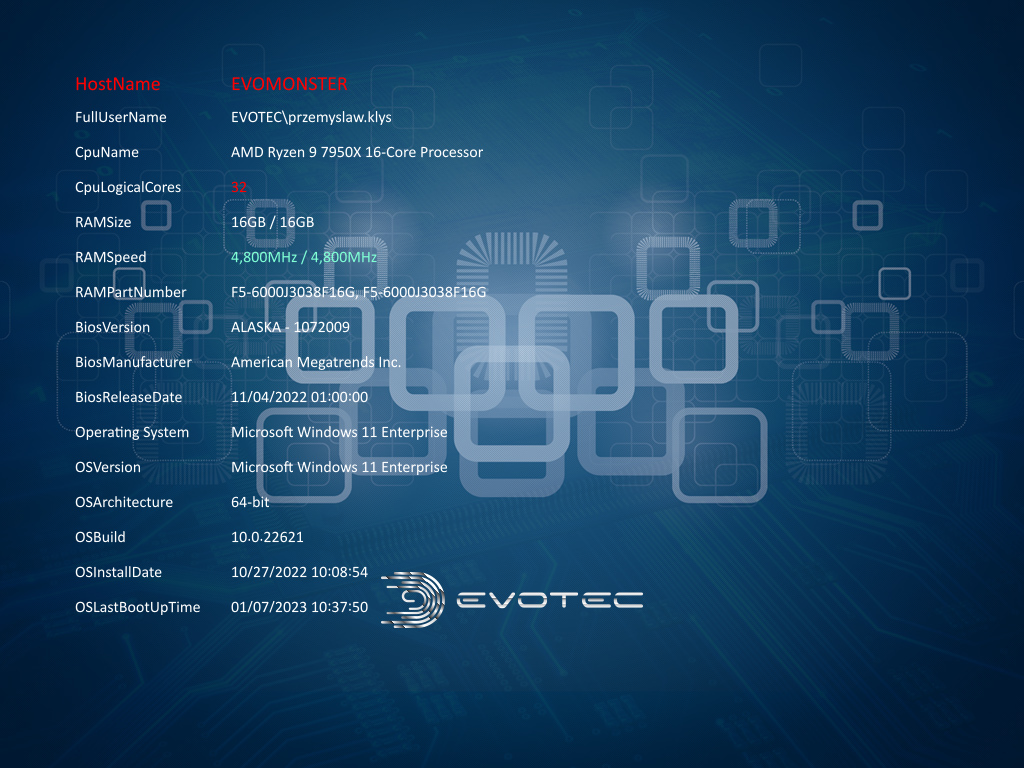
PowerBGInfo supports JSON-driven configurations that are shared by PowerShell and the optional CLI. Most users can stay in PowerShell; JSON is useful when you want a portable file for scheduled tasks, RMM tools, or endpoints that should only render/apply a saved configuration.
Sample file: Examples/Configuration/PowerBGInfo.Sample.json
ChartForgeX chart showcase: Examples/Configuration/PowerBGInfo.ChartForgeX.Showcase.json
When hand-editing JSON on Windows, remember that backslashes inside string values must be escaped as \\.
{
  "ConfigurationDirectory": "Output",
  "FilePath": "Samples\\TapC-Evotec-2560x1080.jpg",
  "MonitorIndex": 0,
  "Target": "Wallpaper",
  "WallpaperFit": "Fill",
  "PreserveWallpaperSlideshow": true,
  "Color": "#FFFFFFFF",
  "ValueColor": "#00FFFFFF",
  "ValueWrapWidth": 320,
  "ChartLayout": "Stack",
  "ChartStackAnchor": "BottomLeft",
  "ChartStackDirection": "Vertical",
  "ChartStackSpacing": 12,
  "ChartStackOffsetX": 10,
  "ChartStackOffsetY": 10,
  "ChartStackAlignToTextBlock": true,
  "ChartStackOutsideTextBlock": true,
  "Entries": [
    { "Type": "Value", "Name": "Host", "BuiltinValue": "HostName" },
    { "Type": "Value", "Name": "User", "BuiltinValue": "FullUserName" },
    { "Type": "Label", "Name": "Performance" }
  ],
  "Charts": [
    {
      "Id": "cpu",
      "Title": "CPU",
      "Kind": "Sparkline",
      "Metric": "CpuPercent",
      "ValueSuffix": "%",
      "ShowGrid": true,
      "GridLineCount": 3,
      "MaxPoints": 60,
      "Anchor": "BottomLeft",
      "OffsetX": 20,
      "OffsetY": 20
    }
  ]
}
PowerShell authoring and rendering:
Invoke-BGInfo -Path $PSScriptRoot\bginfo.jsonExport JSON from PowerShell:
$config = New-BGInfoConfiguration -Target File
Export-BGInfoConfiguration -InputObject $config -Path $PSScriptRoot\bginfo.json -Force
-JsonPath on New-BGInfo preserves the configuration and the dynamic tokens that the shared engine understands:
- builtin values such as
HostName,FullUserName,OSName - chart metrics such as
CpuPercent,MemoryPercent,DiskFreePercent - native variables/providers such as
Volumes - loop/template entries via
-ForEach - layout, colors, fonts, spacing, target, wallpaper options, and chart settings
It does not preserve arbitrary PowerShell source code. For example, a foreach ($Disk in Get-Disk) { ... } block is executed during export, and the produced entries are written to JSON as normal values.
Optional CLI runtime:
PowerBGInfo.Cli --config $PSScriptRoot\bginfo.jsonPublish a single-file CLI build:
dotnet publish .\Sources\PowerBGInfo.Cli\PowerBGInfo.Cli.csproj -c Release -f net8.0-windows -r win-x64 --self-contained false -p:PublishSingleFile=truePublish a NativeAOT CLI build for file-generation scenarios:
dotnet publish .\Sources\PowerBGInfo.Cli\PowerBGInfo.Cli.csproj -c Release -f net8.0-windows -r win-x64 -p:PublishAot=trueNativeAOT is currently best for --no-apply / Target File workflows with an explicit FilePath. Windows desktop APIs from DesktopManager and System.Management still emit AOT warnings for wallpaper and system-query paths.
Treat NativeAOT as a file-generation smoke path, not yet as a strict pixel-for-pixel parity target for every machine/runtime combination.
Build and test the current checkout:
dotnet test .\Sources\PowerBGInfo.sln
Invoke-Pester -Path .\Sources\PowerBGInfo.Tests\Cmdlet.Tests.ps1 -Output Detailed
For a fuller release-proof pass, use the reusable validation script:
pwsh -NoLogo -NoProfile -File .\Build\Validate-PowerBGInfo.ps1 -Configuration ReleaseThat script verifies the solution build, .NET tests, PowerShell/Pester tests, JSON rendering, optional CLI rendering, single-file publish, and NativeAOT file-output smoke path. Use -KeepArtifacts if you want the rendered files and published executables left on disk for inspection.