please do not contact me on trying to get the source setup. there are many guides on how to and if you read this guide properly you shouldn't need help.
this guide will be mostly a mix of the original one, and some things i added.
(original guide by SrCookie450, changed and site fixed by harryzawg)
- Node.js, to run the renderer/build panel
- PostgreSQL, for the database
- .NET 6.0, to run the website
- Go, for asset validation
- Python, for image validation, make sure to add to path in setup!
- python packages: fastapi, aiohttp, pydub, uvicorn, python-magic, python-magic-bin==0.4.14, python-multipart, cryptography (pip install packagename to install, this also requires FFMPEG!)
- at least Windows 10, Linux is untested as my server is a Windows machine. You should use Wine to run everything if you are using linux (or if running a Debian vps, you can use Proxmox and run a windows VM.)
- a 10 character long domain that supports both HTTP and HTTPS
- knowledge on how things like this work (you should have at least some experience with websites and coding to be able to host this. it's really not hard to set up if you know what you're doing.)
- open Command Prompt, and use CD to go into your PostgreSQL folder. it should be at
C:\Program Files\PostgreSQL\(your postgres version, if you followed the guide it will be 13)\bin - copy the schema.sql file in
api/sqlto that PostgreSQL bin folder, then run in a Command Prompt window in that folder:
psql --username=** --dbname=* < schema.sql
*= the name of the database you want to use, if this is your first time installing, use postgres**= your postgres username, default is postgres if you didn't set any in the setup
- rename the
appsettings.example.jsonfile inRoblox/Roblox.Websiteto justappsettings.json, then open it. - in the appsettings file, change the default POSTGRES line that looks like this:
"Postgres": "Host=127.0.0.1; Database=bubbabloxnew; Password=test; Username=postgres; Maximum Pool Size=20",
to:
"Postgres": "Host=127.0.0.1; Database=*; Password=your Postgres password; Username=**; Maximum Pool Size=20",
-
*= the name of the database you want to use, if this is your first time installing, use postgres -
**= your postgres username, default is postgres if you didn't set any in the setup -
press
CTRL + Hand changeC:\\Users\\Admin\\Desktop\\Revival\\ecsr\\ecsrev-main\\services\\toC:\\whereever your BubbaBlox folder is\\(make sure it's double slashed! so it should look likeC:\\folder1\\folder2\\) -
you should update everything in the appsettings.json file to your configuration.
-
you should also rename
game-servers.example.jsonin theRoblox/Roblox.Websitefolder to justgame-servers.json -
go to the
rendererfolder, rename the file namedconfig.example.jsontoconfig.jsonand change everything inside of it so it works with your main site and matches your appsettings.json. you should change GameServerAuthorization and the Authorization under Render in your appsettings.json to the Authorization in your renderer config.json.
- first off, go into
Roblox/Roblox.Website/Middleware/CorsMiddleware.cs, and replace everything that hasbbblox.orgin it with your domain, this is so thumbnails can load. - go into the
apifolder, - create a folder named
storageinside of that api folder, - inside the
storagefolder you just made, make a folder namedasset, - then go back to the
apifolder, and go intopublic/images. then, make a folder namedthumbnailsandgroups. - open Command Prompt and use CD to go into the
adminfolder, then runnpm iandnpm run build - go to
2016-roblox-mainand rename the file named config.example.json to config.json. - replace
your.domainwith your actual domain inside of that config.json file. - in a Command Prompt window, and use CD to go into that same folder (
2016-roblox-main), and runnpm iand thennpm run build - also in a Command Prompt window, and use CD to go into
renderer, and runnpm iand then runnpm run build
- go to the Discord Developer Portal and make a new application.
- go into OAuth2, and replace the client id in the appsettings.json with your new client ID and client secret.
- add your redirect URL under the client ID section to be
https://your.domain/discordcb, replacing your.domain with your domain. do the same forhttps://your.domain/forgotcb, andhttps://your.domain/logincb. - update the client ID, secret and add your new redirect URLs that you just added in the portal to
appsettings.jsonor else it won't work.
- download HxD, go into the RCCService folder, RCCService.exe file into it. make sure the domain you are using for this is exactly 10 characters, or it won't work correctly without a workaround (provided below).
- the reason for this is the way that RCC was compiled, it was set to use Roblox's domain which is 10 characters. just replace it with your 10 char domain (CTRL + R, then do bbblox.org as the string then replace it with your domain. make sure your direction is all)
- do the same for the client.
- also, change the domain in AppSettings.xml to your domain. (for clients and RCC)
- if you decide to use your own RCC/client, you will have to add the hash of the client in ClientData.cs under
Roblox/Roblox.Website/Controllersand also search for NS1 and replace your domain with roblox.com for NS1, NS2 and NS3. example
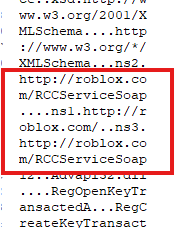
- open Registry Editor, and navigate to:
HKEY_LOCAL_MACHINE -> SOFTWARE -> WOW6432Nodeand go into ROBLOX Corporation and then the Roblox folder. (if they don't exist, create the keys) - then, inside of the Roblox folder, right click, go into New, and select String Value. Then the name should be AccessKey and set the value to whatever your RccAuthorization value in your appsettings is. (in the
Roblox/Roblox.Websitefolder) - then, make another string value named SettingsKey and set the value to whatever you want. after doing this, you should update AllowedQuietGetJson in your appsettings to have RCCServiceYourSettingsKey and just your settings key, replace YourSettingsKey with your actual settings key.
- then, go into
Roblox/Roblox.Libraries/Jsonand rename theRCCServiceBubbleRev2021RCCIsSoTuff.jsonor whatever it is toRCCServiceYourSettingsKey.json(replace YourSettingsKey with your settings key, once again). - you should also do the same thing in the
Roblox/Roblox.Website/Controllers/Internal/Other/ClientData.csand do a search for/v1/settings/application. Look for theRCCServiceBubbleRev2021RCCIsSoTuffand replace it withRCCServiceYourSettingsKeyreplacing YourSettingsKey with your actual settings key
- you need to run the Generate.py file in the
Roblox/Roblox.Website/RSAfolder. this will generate the private and public keys. (make sure you have Python installed and the pip packagecryptographyinstalled!)
- open the RCCService folder, and drag the RCCService.exe file into HXD. then do ctrl + f and type BGIAA (direction: All)
- get your generated public key from the script you ran earlier, the file is
PublicKey2016.pub. open in notepad, and go back to RCCService in HXD, then replace everything in HXD from BGIAA to the last = sign, then save the file. - for 2018, you might see multiple keys. just replace the first one.
- on 2020, the process is a bit different. open your RCCService.exe file in the RCCService2020 folder in HXD, and do a search for MIIBI (direction: All)
- open your
PublicKey2020.pubin HXD as well. copy everything in it, then go back to your RCCService tab, and paste everything inside from the first - at BEGIN PUBLIC KEY to the last - at END PRIVATE KEY. (there may be a period at the end, if it asks if you want to change the file size, just click cancel, and select one extra dot at the end and it should work) - you will see multiple public keys. replace EVERY one for it to work, i don't know why it doesn't work when it only has one replaced, but you have to replace every one.
- the client process is the same thing as RCC, just on your client EXE. (except for 2020, you only have to update 1 public key)
- go into your main folder, run
runall.bat, and when everything starts, go to your site athttp://localhost. - sign up for an account with the name
ROBLOXor whatever you want, does not matter. then go to /admin, and go to create player under Users, put ID 2500, the name asUGCand a random password, then go to that user on the admin panel and click Nullify Password. if you sign up and it takes around 15-20 seconds and throws an error, try just logging in with the account you created. this happens because it cannot render your avatar, so this will not happen once your renderer is fixed. - go back to Create Player and set the ID to 12, and the name as
BadDecisions, make the password hard or do Nullify Password on it. - now, sign up with your account normally.
congrats, site is setup and made!
- go to /game/get-join-script?placeid=(the place you want to join)
- then use Command Prompt and use CD to go into the client's directory in Command Prompt, then do CLIENTNAME.exe (paste everything in the get join script endpoint after the client exe)
- one of the reasons is that you do not have 3d acceleration or DirectX installed. try installing DirectX, this should solve the issue.
- you do not have 3d acceleration. you can try using Mesa (32 bit) and putting it in the directory of RCCService. if you already have it, you may not have PlatformContent or shaders.
- this COULD be one of many things: you have not forwarded your allowed network ports through your router/firewall, or updated your GSIPAddress (your/your servers public IP) in the appsettings. you should also check if your RCC is starting successfully, if it is and it loads the game, then it's a port/ip issue or something else
it says CURL error and prints a bunch of text, ini and dmp files, or says 400 Bad Request a bunch of times:
- go to
%localappdata%\Roblox\logsand delete everything, this happens when there are dump files in the directory
higu